Shortcodes for StoreLocatorPlus and Add-ons

[slplus] is the primary shortcode used within WordPress sites to display the Store Locator Plus map and location search interface. Many other attributes can be found within the plugin and add-ons.

A shortcode is a special label inside of square brackets that is used within WordPress pages and posts to display the output from a plugin. You place a shortcode within the text of your page or post and the plugin will “do it’s magic”.

Note: Shortcode attributes WILL NOT WORK if Force Load JavaScript is turned on under Store Locator Plus General Settings. Try turning it off before using attributes. If Store Locator Plus won’t load when you turn Force Load JavaScript off, get a different WordPress Theme that fully implements WordPress code standards.

Note: As of  WordPress Plugin API update 4.2.3 effects shortcodes with filtered styles which will not be recognized when stored between quotes.

Results not showing all locations

Q: I have 20 locations filled in on the back end, but only 5 show up on the front end. What am I missing?

A: Establishing various parameters in the settings under the Settings/Search and under the Settings/ Results tab in your SLP User interface will effect how your results are displayed. Setting the Results radius to a large enough number to include all locations is paramount to achieve best results.

Getting Started , Results Settings and Search settings are also explained in the Documentation. You can search by keyword or click on the menu sidebar.

Adding Locations with additional features

If you have any of the Store Locator Plus featured Add-ons such as Power, Experience, or Premier add-ons , or if you have the MySLP Saas Professional or Enterprise level plan you will see additional sections when Adding (or managing) a Location.

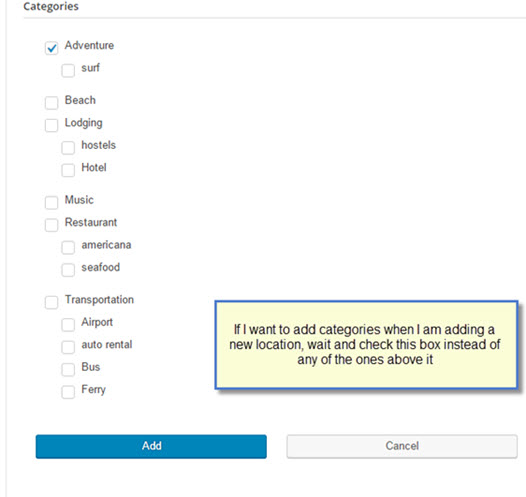
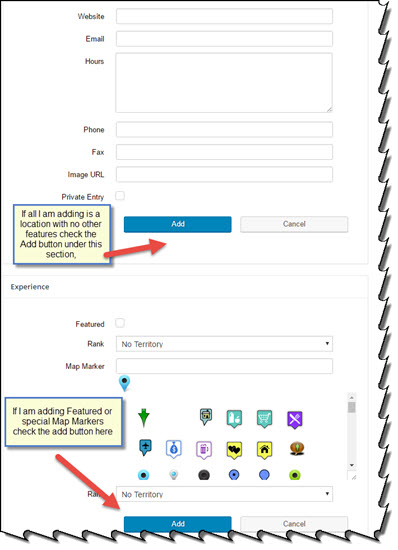
You can opt to fill in all the rows and info that determine the Location and geocoding and hit Add button if you are done entering information. Or you can opt to continue to the next section, whether it be featured, tags, categories, or other functions that are in separate sections on the Location Add Tab.Click the “Add button” at the bottom of the next section instead.

For example, I want to add a location that also is going to have a category assigned to it. I have the latest version of the Power Add-on activated. After adding all the Location information, I do not click on the Add button under the location information but continue on down to the next section called “Power” and add whatever pertinent information I wish to add there. Once I am satisfied and have no additional data to add, I click on the Add Button under the Power section of the Locations Panel to create the location that I have just added.

The category or other additional data you just associated will appear when you review the Locations Page.When to click the add buttonaddlocationa nd acategories
How to Export Locations to CSV file

Bulk Export

You must have the MYSLP/Professional level or the WPSLP plug-in with the Power add-on .

  1. Go to the Store locator Plus side bar menu, select the Locations tab
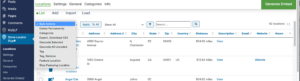
  2. Select from the drop down  menu under BULK actions , select export  Download to CSV.
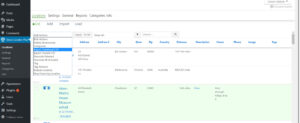
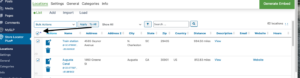
  3. You may select  the locations by clicking either individually and Apply  or click on the action bar and select the Apply /  ALL button or you may  filter what you wish to export. Screenshots, the first one is the Plug-in  menu
    Above shown is the WPSLP plug-in with Power add-on
    SLP SaaS bulk export with Professional level plan

    SLP SaaS Action bar to check off All

Results Order by display

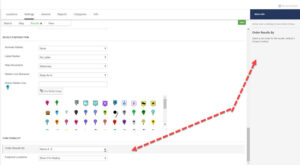
The Store Locator Plus default is to show the order of the  results below your map by distance, i.e. closest to the searched address  listed first.   With the Experience Add-on or the Premier Add-on the  “order by” options  allows you to display the results in a different order.  With the Experience add-on (if you are using WordPress SLP) or the Professional Plan (if you are using the MySLP Subscription) the results order by options  are  under your Settings/Results/Panel

  • Closest list the closest to the search address or center of the map (this is the default)
  • A..Z- alphabetical sort of locations.alphabetical sort of locations
  • Random- random order of locations, changes on each search
  • Featured, Rank, Closest
  • Featured, Rank, A..Z
  • Featured, Closest
  • Featured, A..Z
  • Rank, A..Z
  • Rank, Closest

    Experience add-on allows you to change the order of the results


Store and Category Manager

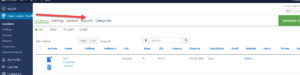
Store and Category Manager interface is available if you have the  Power  Add-on installed (for WPSLP users) or have the MYSLP Professional level or higher. You will see a tab “Categories” in your Store Locator Plus User Interface.

Under side menu MYSLP/StoreLocatorPlus menu

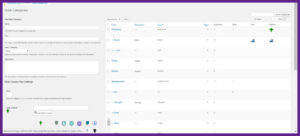
Once you open the Category Tab  you can begin to add categories and slugs or edit existing.  Set Markers and Icons per category (optional) if you want those to appear in place of map markers.  A Bulk action drop down to delete some or all categories is  at the top of the category box.

Settings/Search

You can choose to show the categories that you have created in a drop down menu as part of the search form.  There are additional category selector options available for WPSLP premier subscribers  or MYSLP Enterprise subscribers (example see Checkbox selector). You can add text as a label that will display  at the top of the categories drop down menu, or you can leave blank.  You can also add text for the category select box that will appear in front of the category drop down on the user interface.

Hide Empty Categories Setting

For WPSLP Power add-on users . Do NOT turn this on unless you have   Pages enabled.

Settings/Results

If you want the category icons to appear in results list check off Category Icons

Categories

The ability to categorize your locations using the WordPress category (taxonomy) system.  The Categories Manager (Formerly known as Tagalong) is part of the Power Add-on   for  WPSLP self managed customers, and available for the MYSLP Professional or higher plans)  It builds on the Store Locator Plus store_page taxonomy that is also used with the Pages portion of the Power Add-on (for WPSLP stand alone).  Build a “simple flat list” of categories or a hierarchical (parent/child) category structure. Once you’ve categorized locations you will find other added benefits on the user interface.

Radius Behavior

Store Locator Plus  Radius Behavior is set to “always use” in the base plugin or Advance level subscription for SLP SaaS

For additional options you would need Professional level  and /or higher for MySLP/SLP SaaS  or the Experience add-on for the WPSLP plug-in  which allows you to extend the functionality beyond the basic “Always Use” setting.  This setting impacts how the radius selector is employed and how locations are filtered before being displayed to the user.

The map radius is set under the Settings /Search tab and the results (after search) is found under the Settings/Results tab”Initial Search radius”.  The search radius selection options presented to the user in the drop down menu is set under the Settings / Search tab  panel.