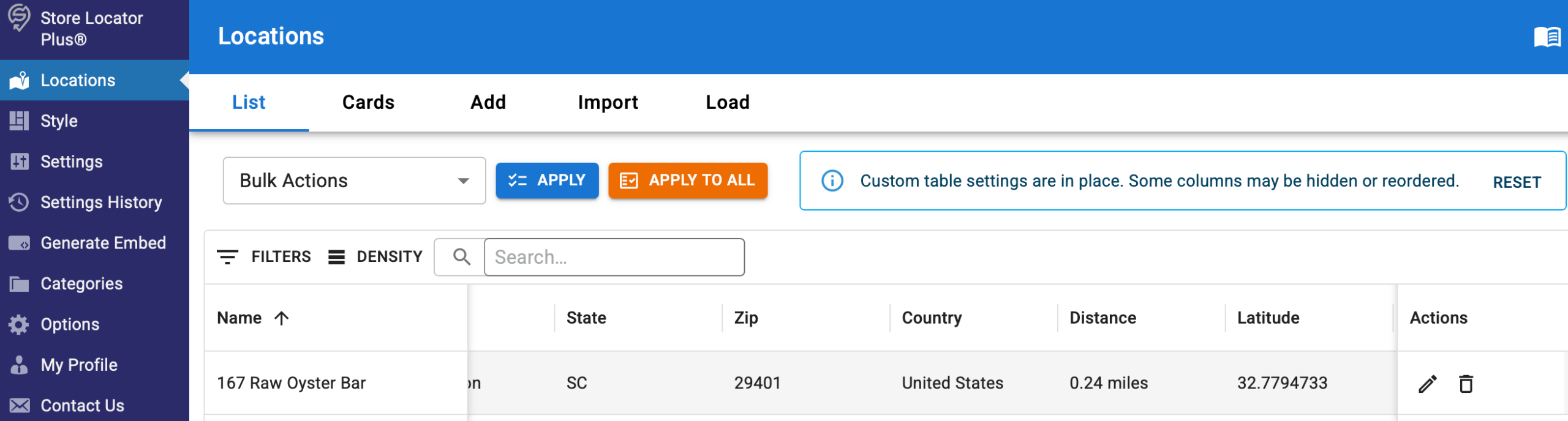
Manage Locations in Store Locator Plus® (SLP) by clicking on Locations in the sidebar after you’ve logged into your account.
SaaS users can login via the SLP Dashboard.
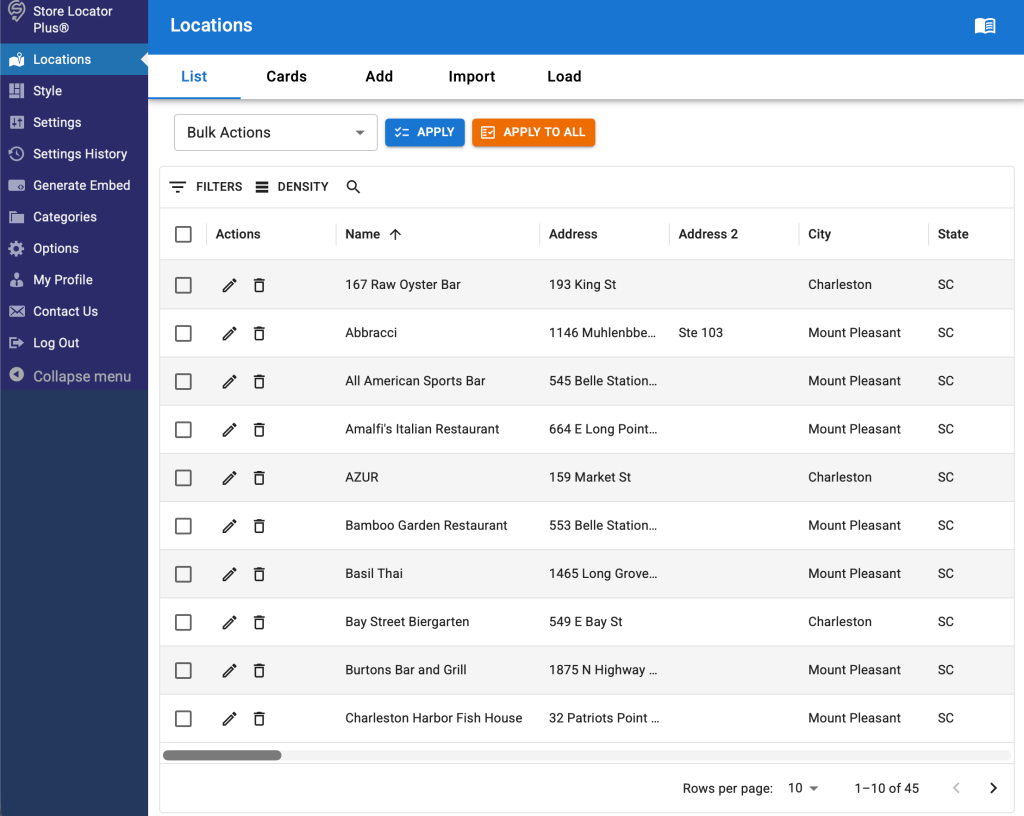
List
The List tab opens a table-based view of the locations.
Custom views for the locations list are saved to the logged in user profile.
This includes things like filters, row density, column order, pinned columns, and hidden columns.
When a custom view is active you can reset to the default view by clicking reset in the custom view notification.

Add A Location
To add a location click on the Add tab menu.
Edit A Location
To edit a location, click on the edit icon in the Actions column on the table.
Search For A Location
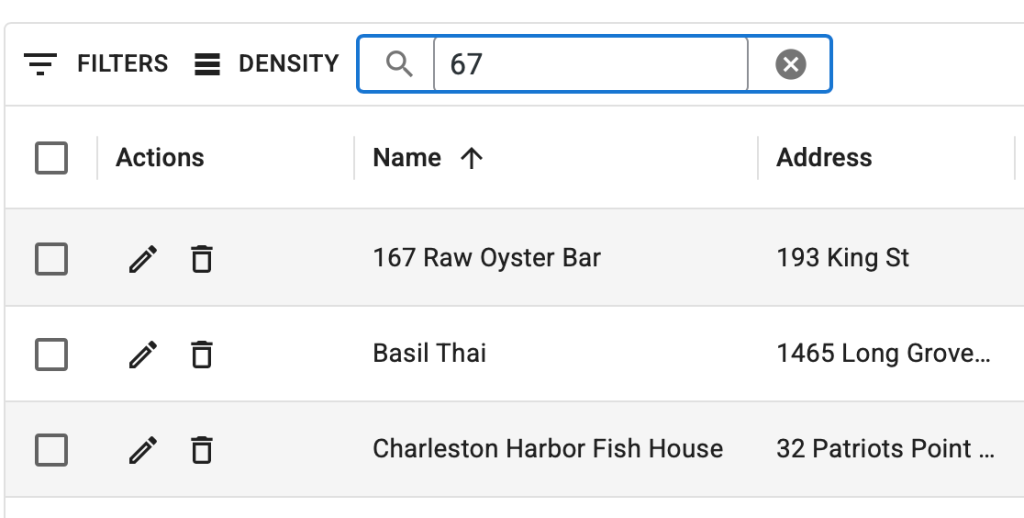
You can use the quick search icon on the top left corner of the table to perform a quick location text search across multiple fields.
Bulk Actions
Perform bulk actions on locations. See the sections below for details.
Filters
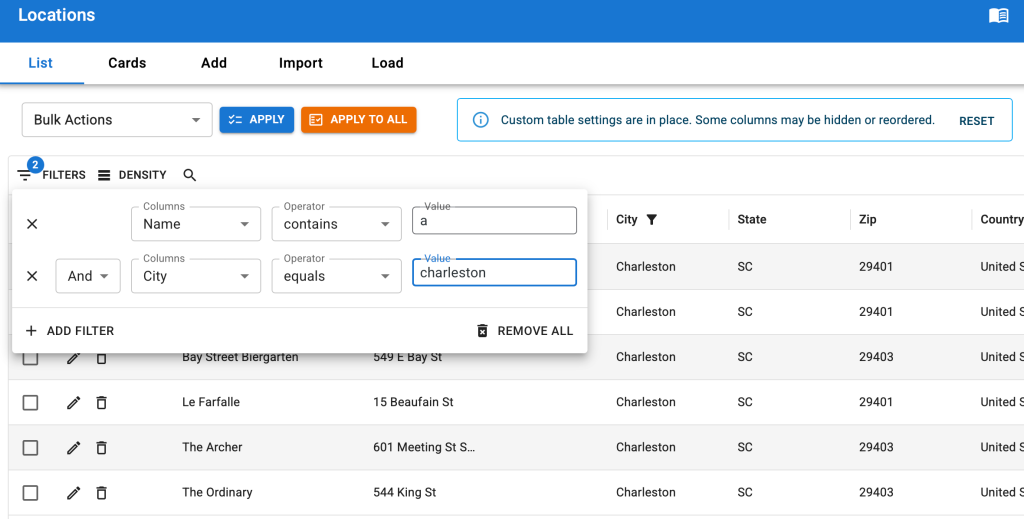
Filter the list of locations using multiple field and value combinations.
Click on the Filters icon on the top left of the locations table.
Sorting
Click on the column labels to sort locations.
Column Management
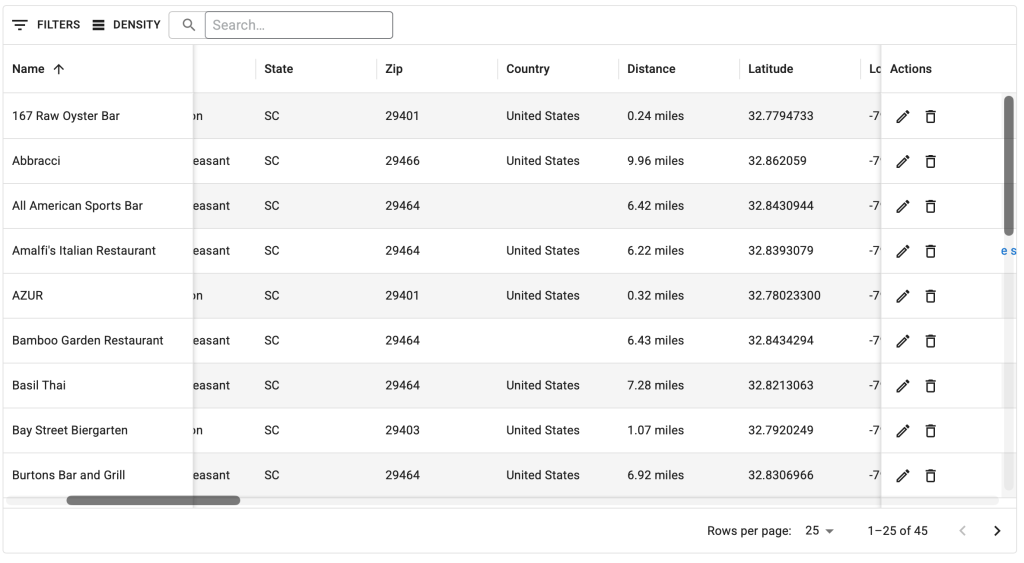
You an hide, pin, and rearrange columns.
Click on a column label and click the triple-dot menu to pin, hide, and manage (bulk show/hide) columns on the table.
Drag column labels to rearrange the order.
Pin left or right to pin a column while scrolling unpinned columns under the pinned column.
Pagination
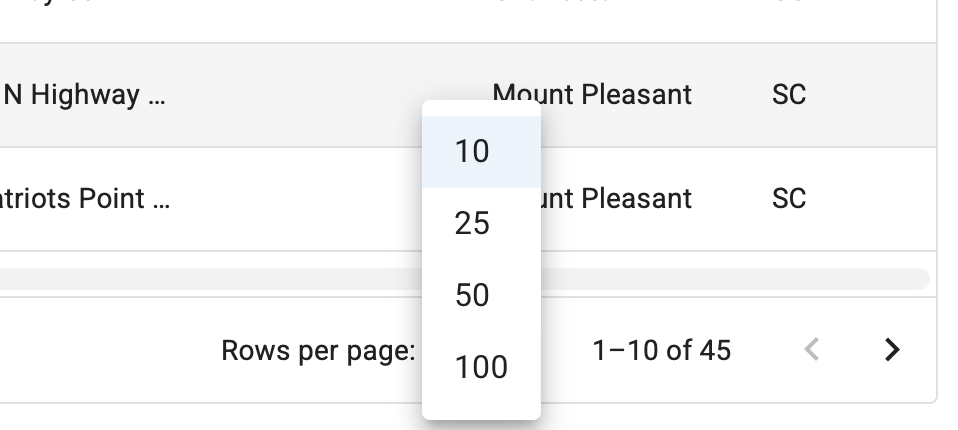
The default number of locations is displayed on the List view can be changed via the pagination settings at the bottom of the location table.
Note for WordPress plugin users:
With managing your own servers the functionality of the locations list may be impacted by your server configuration. Undersized servers will not have the memory or network performance to list a large number of locations. Setting the pagination to more than 100 locations can cause the server to stop responding. Selecting a large number to display can be useful to view or manage but if your server capacity cannot handle it or changes and you go back to manage locations months or years later and try to access your locations panel, you may see no locations panel. If you see the wheels churning on your computer with no results this could be the reason. If you are not sure of the capabilities of your server, browser and various other factors that effect memory, and inhibit loading and displaying fields, err on the side of caution and set the Filter Display locations back to a manageable size before leaving the panel. If you are migrating servers from a “heavy duty” server to a less robust server, or if your memory becomes an issue you will need to reset the display to a manageable number. See Troubleshooting for more info.
List : Bulk Actions
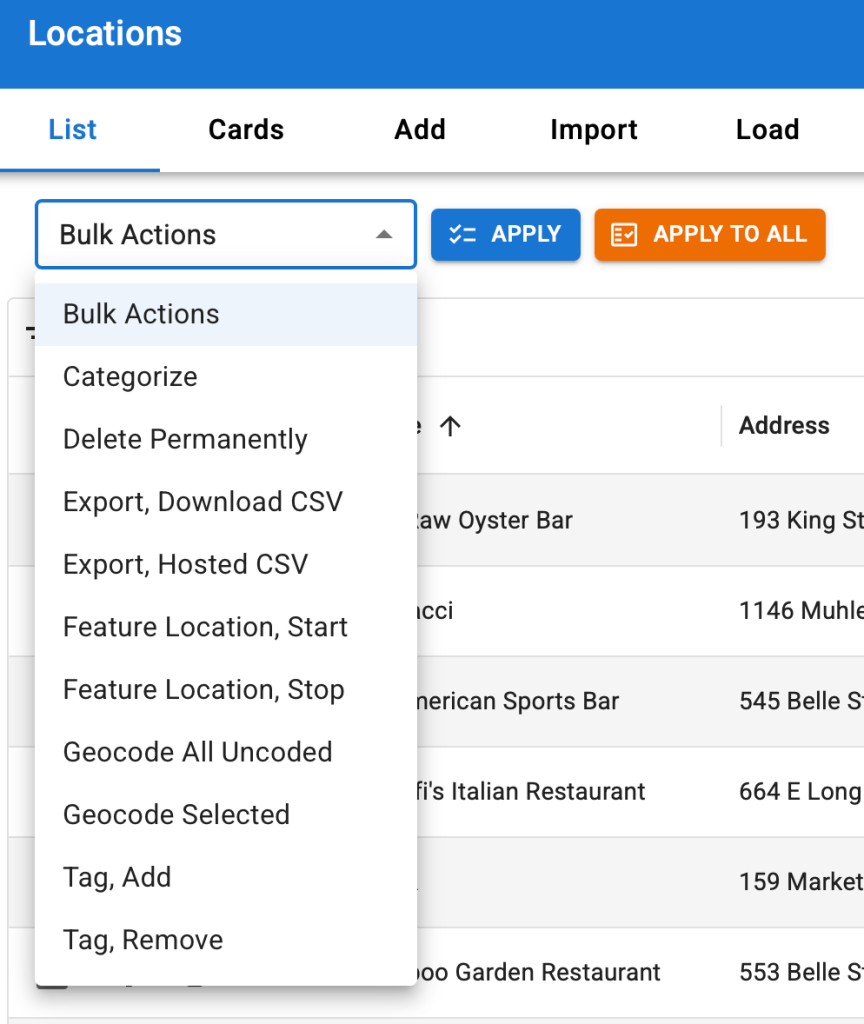
SLP Locations panel has a bulk tab with drop down actions. If you have a large number of locations, bulk actions can be a very useful tool. If you have more locations than can fit on the display.
Not all Bulk Actions will appear if you are not on the Enterprise plan.
List : Bulk Actions : Apply Buttons
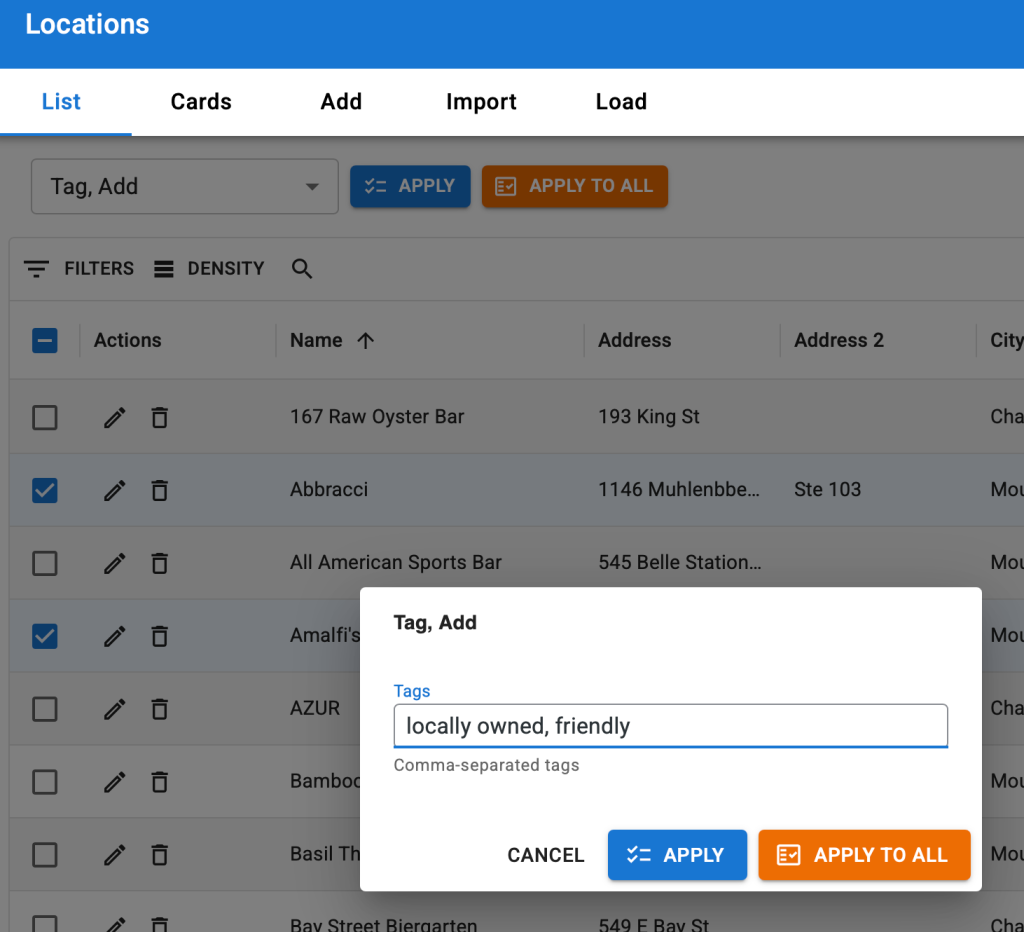
Next to the drop down selection of actions there is an Apply and Apply To All button.
- Apply – only perform the action on the checked locations
- Apply To All – perform the action on ALL locations in the database, NOT only those that are visible in the table
List : Bulk Actions : Delete Permanently
Deletes the location(s).
Plan: Advanced
List : Bulk Actions : Categorize
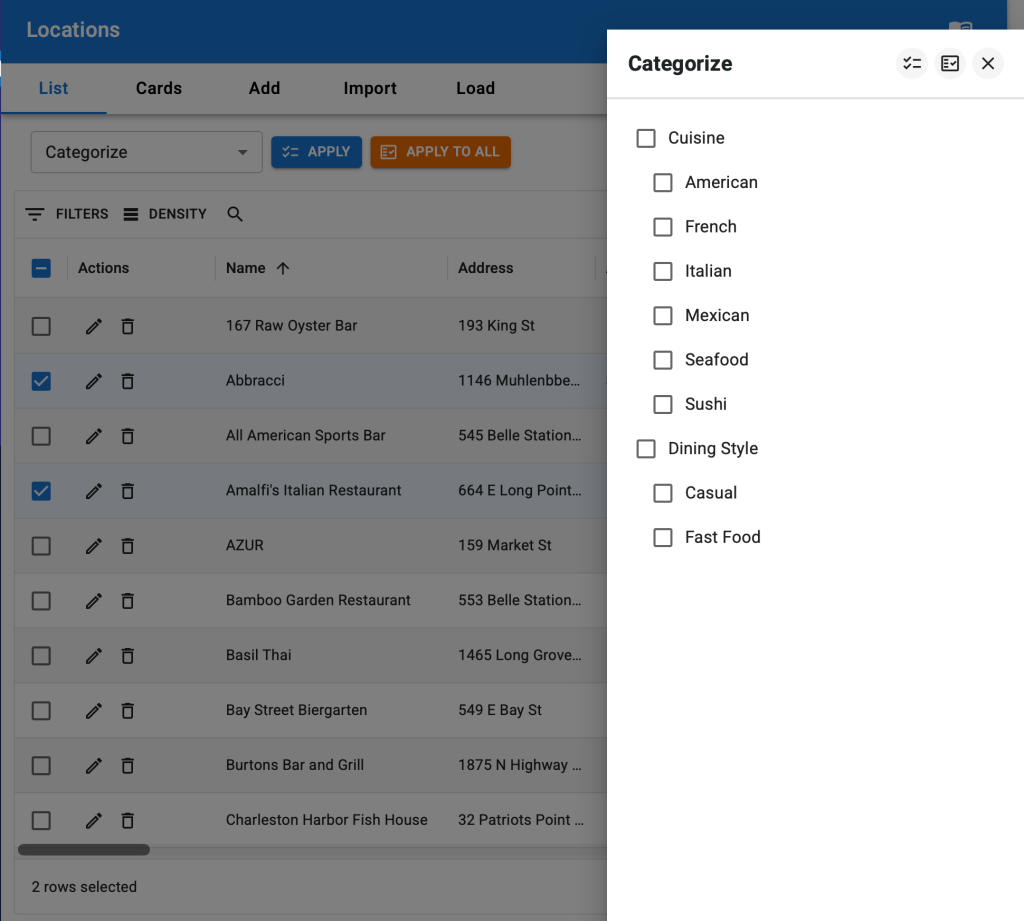
Assign categories to locations.
Create categories before using this feature.
When using the Apply feature, be sure to check the locations to categorize before selecting Categorize from the drop down menu.
Plan: Professional
List : Bulk Actions : Export
Export locations to a CSV file.
Download CSV will immediately ask the browser to download the file.
Hosted CSV will store the file on the server first then prompt to download.
Note: If you are not seeing a download window check the browser settings to ensure popup windows and downloads are allowed.
Plan: Professional
List : Bulk Actions : Feature
Feature a location / stop featuring a location.
Multiple locator styles will highlight feature locations or put them as the first on a location search list of results regardless of the distance setting.
Featured locations are shown as shaded in back end locations panel.
Plan: Professional
List : Bulk Actions : Geocode
Run the geocoding to set the latitude and longitude on locations.
Plan: Professional
List : Bulk Actions : Tag
Tag locations.
Tags are a free-form text association label that can be assigned to locations.
Tags are less structured than categories.
Plan: Professional
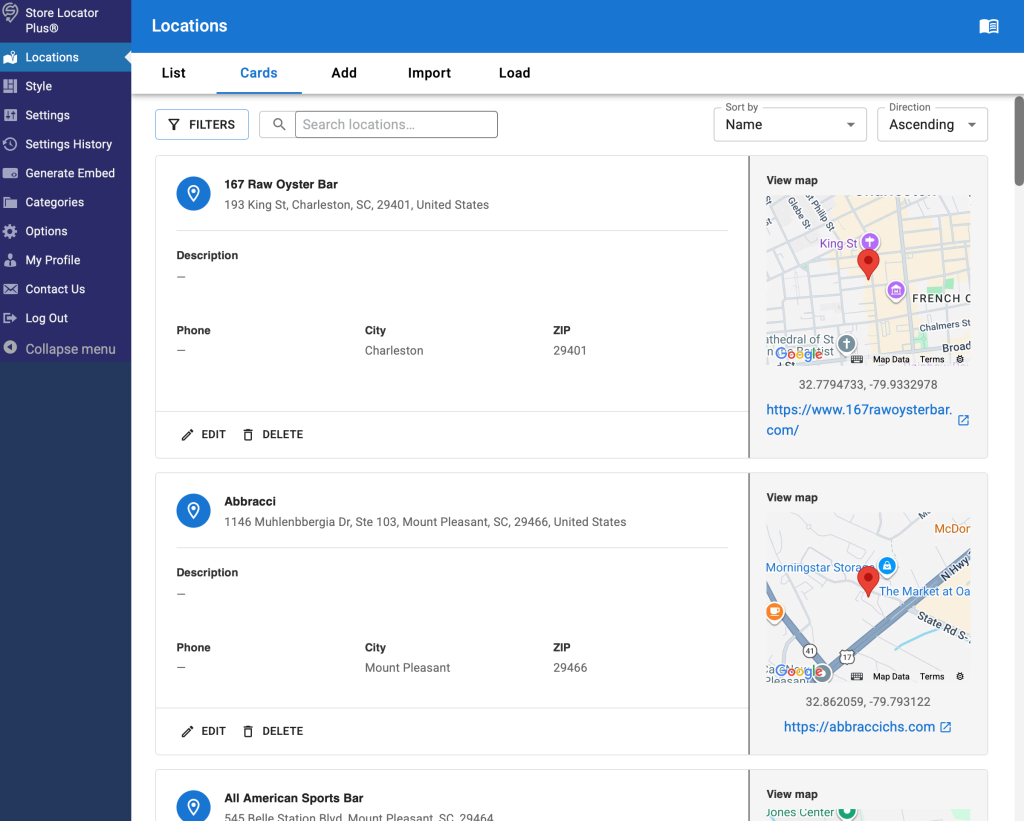
Cards
Cards view is a list of locations in a stacked card format.
It includes a basic filter and quick search feature that work like the List view noted above.
Click on Cards on the tab bar menu to see locations in a card format.
Note for WordPress plugin users:
Accessing cards view will use more Google Maps API key requests and increase your Google API bill.
This does NOT impact fees for SaaS users.