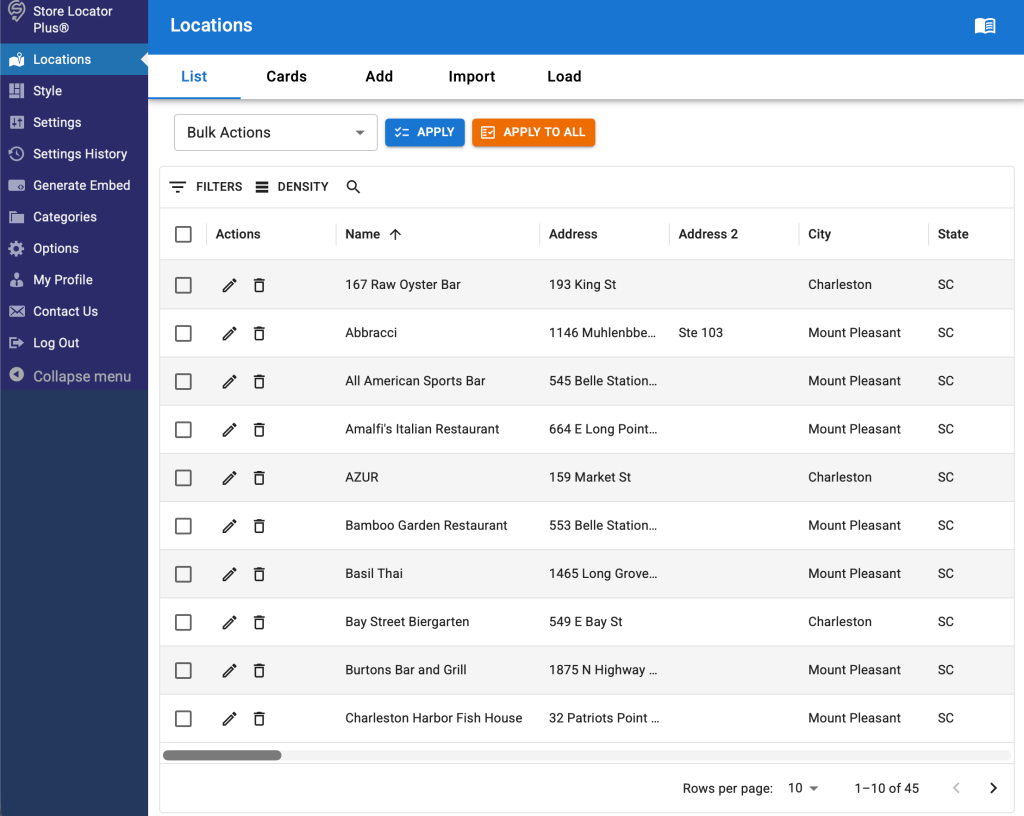
Manage Locations in Store Locator Plus® (SLP) by clicking on Locations in the sidebar after you’ve logged into your account.
SaaS users can login via the SLP Dashboard.
for Store Locator Plus®
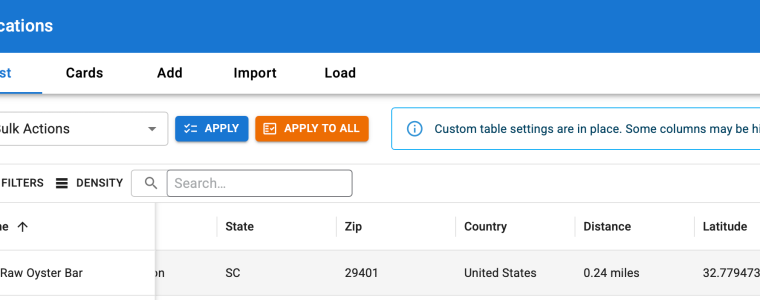
Manage Locations in Store Locator Plus® (SLP) by clicking on Locations in the sidebar after you’ve logged into your account.
SaaS users can login via the SLP Dashboard.
You can easily check your Store Locator Plus® payments for the SaaS subscriptions as well as WordPress plugins. The Premium Subscription for WordPress plugins is not the same as the SaaS Subscription.
The SaaS subscription provides access to our hosted location maps and directory platform. Our servers host the data and do all the computational work. Your website only needs a small snippet of JavaScript to render an interactive map for your visitors. This allows Store Locator Plus® to run on any web service that can serve JavaScript including Ghost, Joomla!, Shopify, Squarespace, Typo3, Weebly, Wix, and yes even WordPress.
The WordPress plugin premium subscription provides access to our primary WordPress plugins with extended features. This is for businesses running their own self-hosted WordPress sites that use plugins to add Store Locator Plus®. It requires your business to provide the WordPress hosting as well as the required map API keys where Google will bill you directly for map rendering and location lookup.
Keep in mind that these are completely separate systems and have different login locations for each service.

This article covers the first 3 steps (2 if you are using our SaaS product) for getting started with Store Locator Plus®.
Store Locator Plus® makes it easy to add interactive location maps and directories on your website. Our latest technology is included in the Store Locator Plus® Maps and Directories SaaS offering. Some of our customers still prefer the self-managed WordPress plugins available via our Store Locator Plus® for WordPress plugins.
Regardless of which method you prefer, both can be setup quickly and have a fully functional site map or directory listing online in minutes.
Load locations does not replace the csv file import functionality available to the MySLP Professional or Enterprise level plan subscribers but it can be used to load basic location data from your WordPress Store Locator Plugin (such as WP Store Locator Plus®,) into your SLP SaaS account. (The basic load will not load category tables. You would need to use import csv file for that.)
This functionality can be found from the MYSLP account, the SLP sidebar tab and under Locations details as shown in the screenshot below.

The loader supports loading locations from WordPress sites running the WordPress Store Locator Plus plugin. You can attempt to load from other WordPress Locator plug-ins but they might not be in the same format.
If you are using a locator or directory plugin other than Store Locator Plus, please contact us
SaaS users can skip this step. Store Locator Plus® for WordPress plug-in users need a Google API key to utilize the full features available in the the plugin. WordPress administrators who are self-managing their plugin updates, security, and Google services need to setup a Google API account so they can start billing for map services.
If you are a subscriber to Store Locator Plus® – our SaaS directory and locator service, you can ignore this page, we’ve got it covered. Go to our Getting Started guide and move on to Step 2.
For the Store Locator Plus® for WordPress users these instructions are a general guideline. You will need to visit the Google developers page and read their User guide to obtain a new account or update your existing account. Google will bill you directly for your monthly map views and location look-ups.

Locations are added to Store Locator Plus® via the sidebar menu via the locations submenu. This option presents a list of all locations along with a menu option to add a location via a web form.
If you have many locations and have either the Power add-on enabled for the plug-in or have signed up for the Professional level plan for the mySLP SaaS you can import them via a CSV import file.

Add a location map to your site by putting the SaaS embed code or WordPress shortcode on any page. You’ll need to have an active Store Locator Plus® SaaS subscription or have the Store Locator Plus® for WordPress plugin installed and activated.
Make sure you’ve completed the initial configuration and setup steps outline in the Store Locator Plus® Getting Started article.
When a visitor goes to a page with the Store Locator Plus® map code embedded, it will show a default search form and a map centered in your country or on the “Center Map At” address you entered when configuring Store Locator Plus®. When someone searches for a zip code that is close enough to a location you entered it will show those locations on the map.

Store Locator Plus® for WordPress plugins are NOT the same thing as our Store Locator Plus® SaaS service. This article will describe the differences between Store Locator Plus® SaaS versus WordPress plugins.
All Store Locator Plus® software updates are handled for you.
There are no Google or other map location service API keys to manage.
Store Locator Plus® bills a low easy-to-understand monthly fee.
You must manage your own Store Locator Plus® software updates.
Google requires an API key for all products using their map software. You must create, manage, and secure your own API key.
Google will bill you for every map view and location geocoding request. Rates are on a sliding scale and are different for map views and location look-ups.
For the WordPress SLP stand alone (do it yourself) plug-in , the latest update to the Word Press base plugin normally appears in your WordPress site Plugin menu for auto update
To check your version against what is currently available please see the site home page under Support/Versions
The WordPress Store Locator Plus base plug-in is again available in the WordPress plug-in directory. If you purchased an add-on you will need to log into your WPSLP account and download it manually the first time you use it.
ALWAYS BACK-UP your site immediately before updating any Plug-ins.
Advanced is comparable to the basic Store Locator Plus plugin.
Professional is the Power level (excluding SEO Pages) plus the Experience add on.
Enterprise is the Professional level plan plus the Premier subscription features, functionality and support services.
Read below for answers to these questions and check out our other “What To Buy” articles.